Tired of watching your students flounder?

Bitmoji Image

I think, possibly, one of the most frustrating challenges we face as educators is when we plan for this GREAT lesson and the tech WON’T work.  Oh my goodness, I feel the heat prickle right up my neck and the panic sets in. It’s when I want to throw something!  Sometimes, the problem is beyond our control. However, other times, we may be able to have a quick fix! Let’s take a look below and see if these tricks can “tide” you over!

Update your Chrome OS

There is NOTHING more frustrating than when you have your plans in place and something just won’t run and you can’t figure out why! Sometimes, the version of Chrome is what is to blame!  Did you know even our state test, MCAS, needs at least Chrome OS 74 in order to run?  Before you run to check your Chrome version, watch the video below of how to quickly update your Chrome! Why doesn’t it update on its own, you ask? Well, it will when it’s looking for the latest version, but when Chromebooks are not used for a longer period of time (say the summer), they may not pull the latest OS version.  Thus, we need to do a manual update. Have no fear, this is a QUICK fix!

Resolve Flash Issues

Ahhh the blessed Flash. So many sites use this application, that this quick fix may help so many. Ever see the “install flash” message? This one is for you!

WiFi Issues

Sometimes multiple networks can confuse a Chromebook. It doesn’t know which one to connect to. Here’s another easy fix from Principal of the Gordon Mitchell School, Andrew Gentile.  He shows you in the video how to “prefer” a network so your Chromebook always knows what network to choose. This will result in a faster connection that will not be interrupted!

Accessibility

If we TRULY do not want our student to flounder, then accessibility tools are where it’s at!  Chromebooks have accessibility BUILT-IN!  Students may flounder with spelling when trying to access a resource, have them try this! Personally, dictation has helped so many students – including my own sons.

If these quick, troubleshooting tips don’t help you at the moment, REACH out!

What are your quick tips to help in a hurry? Let me know!

Take care!

oFISHally Yours,
Erin Fisher 🐟 🐟 🐟

Fishing off the right “pear” 🍐🎣

Bitmoji Image

Cod a minute to learn something new…😉 😉

There are so many amazing tools to enhance instruction in the EdTech world. Eventually (hint) I’ll do a post on my top 100, because honestly there are THAT many. However, a number one tool that stands out EVERY time is Pear Deck.  I have to devote a post “sole”ly to them because honestly, they just keep getting better and better!  Recently, I co-hosted a podcast with the amazing Tori Cameron of Steam up the Classroom. Together, we talked to Risa Bennet of Pear Deck about this amazing tool! Give it a listen here!

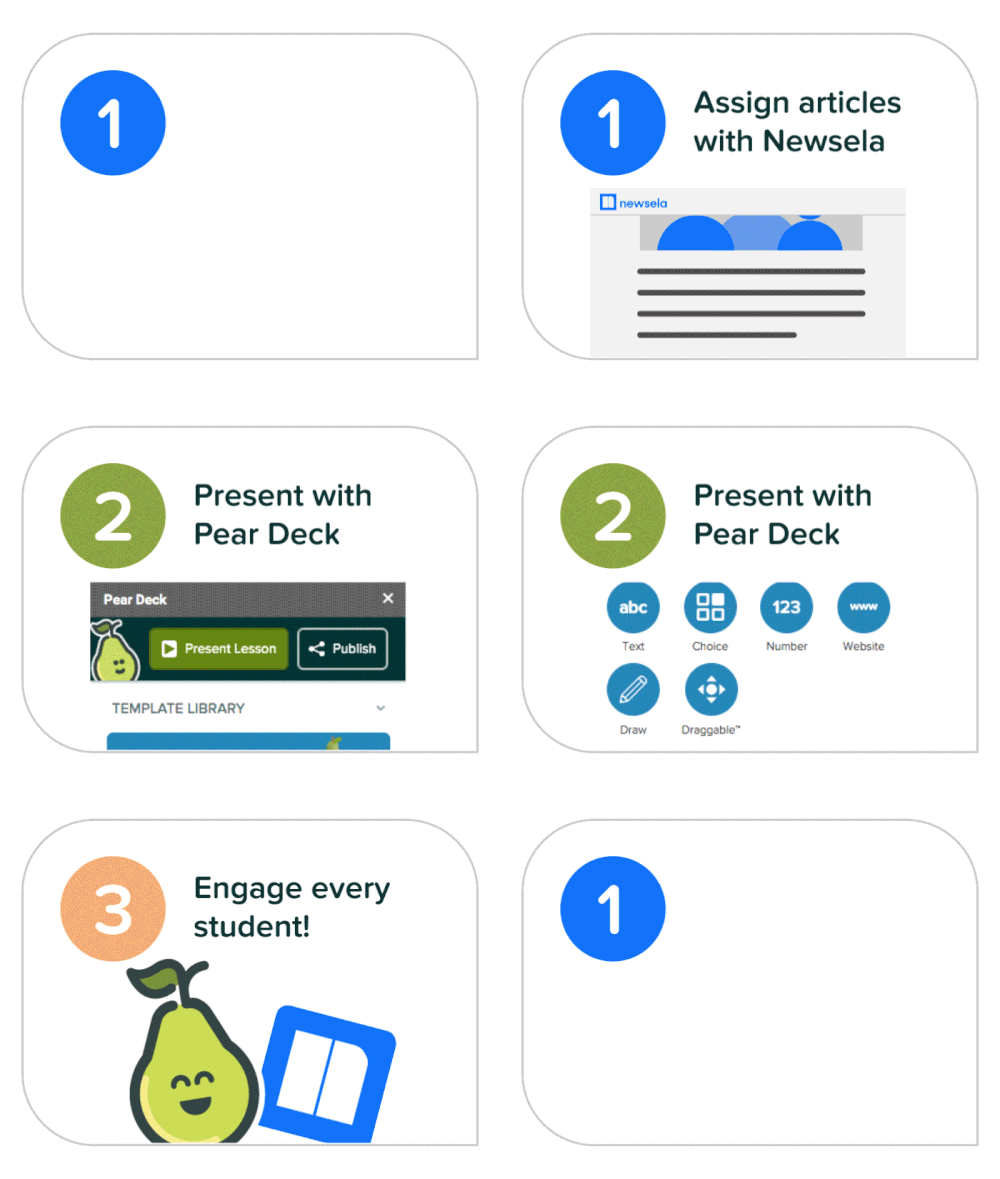
You can take a look at my previous posts about the Pear where I go over how to create a deck or the (newer) amazing Flashcard factory by clicking here, here and here (see so awesome – they have multiple posts). This week I’m going to talk about Pear Deck’s newest features and even better, their MASH  up with NEWSELA (also a top tool!), let’s take a look below!

Pear Deck + NEWSELA  newsela-daily-gif_full.gif

Could there BE a better mash-up (totally channeling Chandler Bing there)?  Seriously, both of these tools are amazing and now they are together like PB&J!  Peardeck will provide you with a deck and article DAILY to use with your class! Pick and choose, or use this great “pair” each day! You can present the Deck whole class or assign it in student-paced mode (premium) and hear from every student!  To read more about this great “pair” and/or to sign up for the daily deck, click here. Also, check out my video below on how this collaboration works!

Pear Deck + Quizlet 🍐

Pear Deck has a great partnership with Quizlet when you use Flashcard Factory! It’s quite easy to copy and list from Quizlet into Flash Card Factory (100% free) and practice vocabulary in an ACTIVE format.  Once completed you can then push student examples back OUT to Quizlet.  I have NEVER seen so much enjoyment from practicing vocabulary than when students play Flashcard factory. I’ve seen it in grade 12 all the way down to grade 2! I use it with adults in my trainings as well and it is always a favorite! Talk about ENGAGEMENT! To read more about this integration, click here, and also be sure to watch my video below!

Great ways to use Flash Card Factory

Click here to sign-in to Flash Card Factory

NEW Pear Deck Menu 🍐

A common mistake when presenting an interactive Deck is not using the Pear Deck Add-on. Well, it’s now easier than ever! Recently, Pear Deck pushed out its own Menu that appears within the Google Slides Menu, right next to Tools. If you don’t see this menu appear, try adding the Google Add-on Pear Deck and the extension Pear Deck Power Up.  This is a great feature, see below to learn more!

Active Learning 💃 🕺

Pear Deck is such a great tool because it really promotes active learning. All students are engaged in either the interactive slide presentation or in the vocabulary instruction.  There isn’t an option for a student to tune out because they are ALL being asked to engage in a task. If you’re “urchin” for something new in the classroom, give it a try!

Save yourself the haddock, and don’t let students flounder! Pear Deck is the best thing since sliced bread 🍞, no squidding 🦑! Try Pear Deck this week – Reach out for help and I’ll gladly assist!

Special thanks to my fellow Pear Deck Coach Monsieur Fritz for giving me so many great puns!

If you have something more engaging than Pear Deck, Let minnow! Post below!

Take care, everyone!

oFISHally Yours,

Erin Fisher 🐟 🐟 🐟

Google Classroom: “Catch of the Day” 🎒🎣

Bitmoji Image

Hello hello!  How is your week?! BUSY?! Well, that’s an understatement! Many of us in education find ourselves running around, putting out some fires, while we try our very best to have a successful September.  I’ve always been a HUGE fan of the Green Day song “When September Ends.” Actually, it’s been my mantra in the classroom for probably the last fifteen years. I look forward to when the month is over, routines are established, and the days are going just a bit more smoothly.

Ring out the bells again
Like we did when spring began
Wake me up when September ends

With that being said, one tool we can always rely on during this crazy time to assist in a smoother day is Google Classroom.  I just can’t ever say enough about this amazing tool.  It always allows for one to easily push out anything to students.  Posting on Google Classroom is so easy – and there are so many great tricks to make it even easier! From setting up Google Classroom to differentiating with groups, this app is just the “catch of the day” for me!  You may think you know ALL there is about this tool, but I encourage you to read below – I’m sure you’ll find a good tip or trick!

Reset the Code

If you ever give out a code to students, and you write it on the board, you will be sure to have errors if there are characters o, 0, 1, l, and I. Notice the lowercase l (as in love) and the uppercase I (as in Ice) look the same! You can reset your code to avoid this problem! You can also reset the code if you by chance get an inappropriate string of characters – believe me, I’ve seen it (think of the words you used to spell on the calculator). Take a look below for this easy fix!

Student Comments (TURN THEM OFF!)

I wish that Google would turn student commenting off by default, but alas, they keep them on.  I may need to send them some feedback (scroll down to read more on that!). Any time you set up your classrooms, students can post until you turn this off.  AHHHH!!! So, watch the video below and go turn that off! The “Ask a Question” feature works well if you care to engage with students on Google Classroom.

Use the Classwork Page (not the Stream)

The Classwork page is amazing! I’ve seen many tend to use the Stream because it appears first. However, anything in the stream doesn’t sort into a topic.  Also, the Stream does not copy over in your Classroom for future years, although you can reuse the Stream from past years. If you post on the Classwork page, it appears in the Stream! Additionally, the more detailed you are in your Classwork Page with topics, material, and assignments, the easier it will be for your students. Not to mention, by posting daily you are making curriculum so much more accessible for your students! Take a look at my highlights of the Classwork page below.

GET THE PHONE APP of Classroom

Student Name Selector

Did you know in the Mobile Application of Google Classroom there is a student name picker?! Well, there is! So, RUN and download Google Classroom to your phone!!

Easily Post Pictures or Video

Remove a step for yourself, and EASILY post content from your classroom with the app! Do you ever download to upload? Well, with this quick trick – you can post anything to Classroom with a quick click. Take pictures of your notes each day and/or provide the exemplar using the camera option in Google Classroom. See below for this gamechanger!

Have Suggestions or Complaints? Tell Google!

Google for Education is really great at making improvements based on educator feedback.  Most of their updates are based on the feedback they receive actually. Take a look at how to do this below!

Google Classroom Overview

There is so much more I could cover and suggest! Below I included a presentation I ran at GooglePalooza on Classroom in case you need more! Enjoy!

Pro Tip (extra): Word Count!

There is now a live word count you can enable on Docs! SO VERY COOL! Check it out below!

Do you have a favorite Google Classroom feature?  Shout it out and let me know!

Take care, everyone!

oFISHally Yours,

Erin Fisher 🐟🐟🐟

FINtastic Google Updates, Tips and Tricks 🦈🦈

Bitmoji Image

Helloooooooooo Everyone! Wow, what a week! Were you back for four full days this week? With students? I certainly am and when I tell you I’m RUNNING between buildings, it is NO JOKE! My brain is on overload and I’m exhausted, but in the best possible way! I love being busy! However, I do find it challenging when I go to my favorite tools and JUST LIKE THAT, they look different! Do you feel me?!  Change is good, and discomfort means we are learning; but – when I rely on that familiarity of my favorite tools and I can’t figure it out…I just feel like this:

Bitmoji Image

Luckily, I have a super supportive network of techie pals I can go to, and of course, I use Twitter!  However…you have ME! So, let me help you! Let’s take a look at some updates below for some of our favorite tools.

Google Form Updates

please recycle Reuse questions from other forms

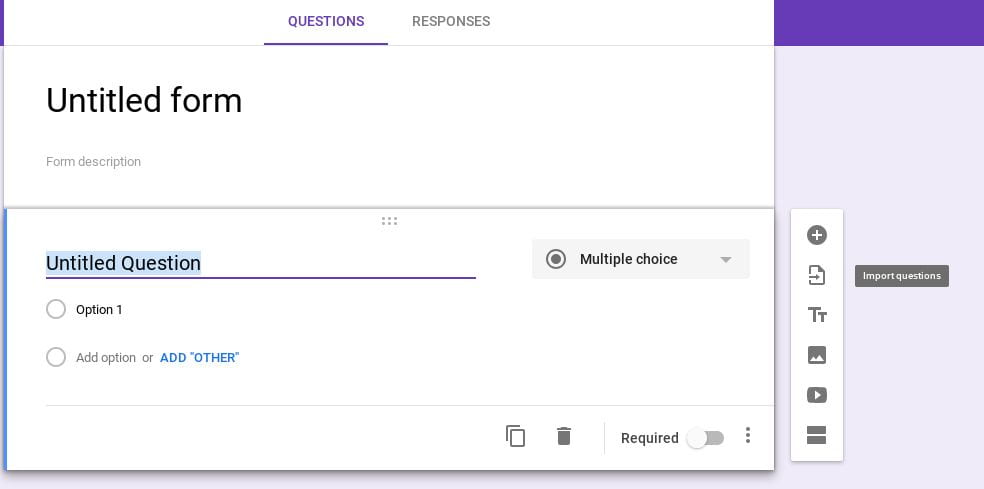
No longer will we need to use an add-on to reuse other form questions! Check out this new release from Google!  Want to make a mixed review from a variety of other forms you’ve made? Well, it’s easy with the new feature! Open up the form you want to use, and simply click the “import questions” symbol on the taskbar. See the image below!

Bitmoji Image Google Form PERMANENT Exit Ticket

This one isn’t an update, but rather a tip from me.  Having a standard form, posted always in your Classwork section, can give you quick data ANYTIME you want it. Call it “Exit Ticket” and give it its own topic. Students will always know where to find it.  Be sure to have your settings like the ones below (see image). If you’d like a copy of this exit ticket form, click here!

Google Classroom Updates

Bitmoji ImageRubrics Beta

Do you want to easily post a rubric for an assignment? Now you can through Google Classroom! This is going to be a great feature to use on so many assignments.  To read more about creating and using Google Classroom rubrics, click here. A great video showing how to use this feature is also posted below!

https://youtu.be/Hm58_Hl2DpM

Bitmoji ImageOriginality Reports Beta

This one is HUGE!  This feature is in Beta, which is important to remember.  Beta means it’s not perfect yet.  However, being able to check students’ work for plagiarism is going to benefit so many!  A great video is posted below which shows how this works from both the Teacher end and how it appears on the student end.

https://youtu.be/fewGVpFomXs


Drive Updates

Bitmoji ImageShared Drives

This one isn’t too new, but the former “Team Drives” has been renamed “Shared Drives” not to be confused with “Shared with Me.” Personally, I find it all a bit confusing. You can read more about the differences in your Drive by clicking here.

Bitmoji ImagePriority in Drive

Did you notice a new page show up in your Google Drive this summer?  Well, to get an idea of the benefits of the Priority Page, check out the video below.

Pro Tips:

Bitmoji ImagePull Text from ANYTHING

Do you write notes on your board, and you want to save them? Simply take a picture!  With Drive and Google Docs, you can pull the text and convert into a digital format!  Translate, enlarge, have notes read aloud…the accessibility options are endless with this GREAT trick!

OR just take a picture and put the picture in Google Classroom for students!  Providing resources and making them as accessible as possible is best for all!

Bitmoji ImageKeep that Cart organized!

Take a look at the amazing color-coded, Chromebook cart in Kim Hardiman’s first-grade classroom! I love it! She has a sticker on the Chromebook, on the cord, and on the shelf as well. The stickers go in rainbow order so students know their number AND color!


What next…

A pal of mine had a great idea of a beginning-of-year checklist! What’s on yours? I think I feel a post coming…

Take care, everyone!

oFISHally Yours,

Erin Fisher 🐟🐟🐟